
Jira
Automate your status page using Jira
Send a webhook from Jira to update your status page
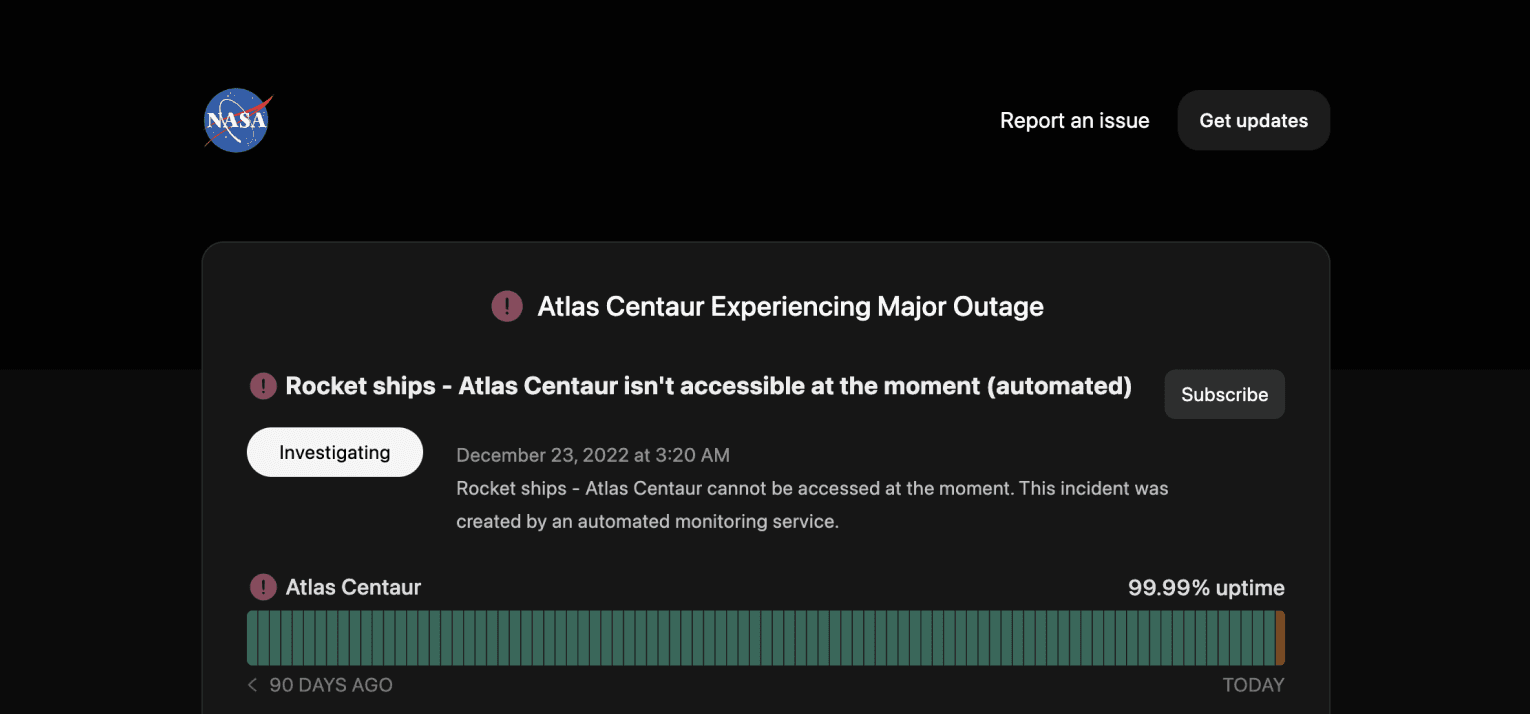
Your status page gets updated
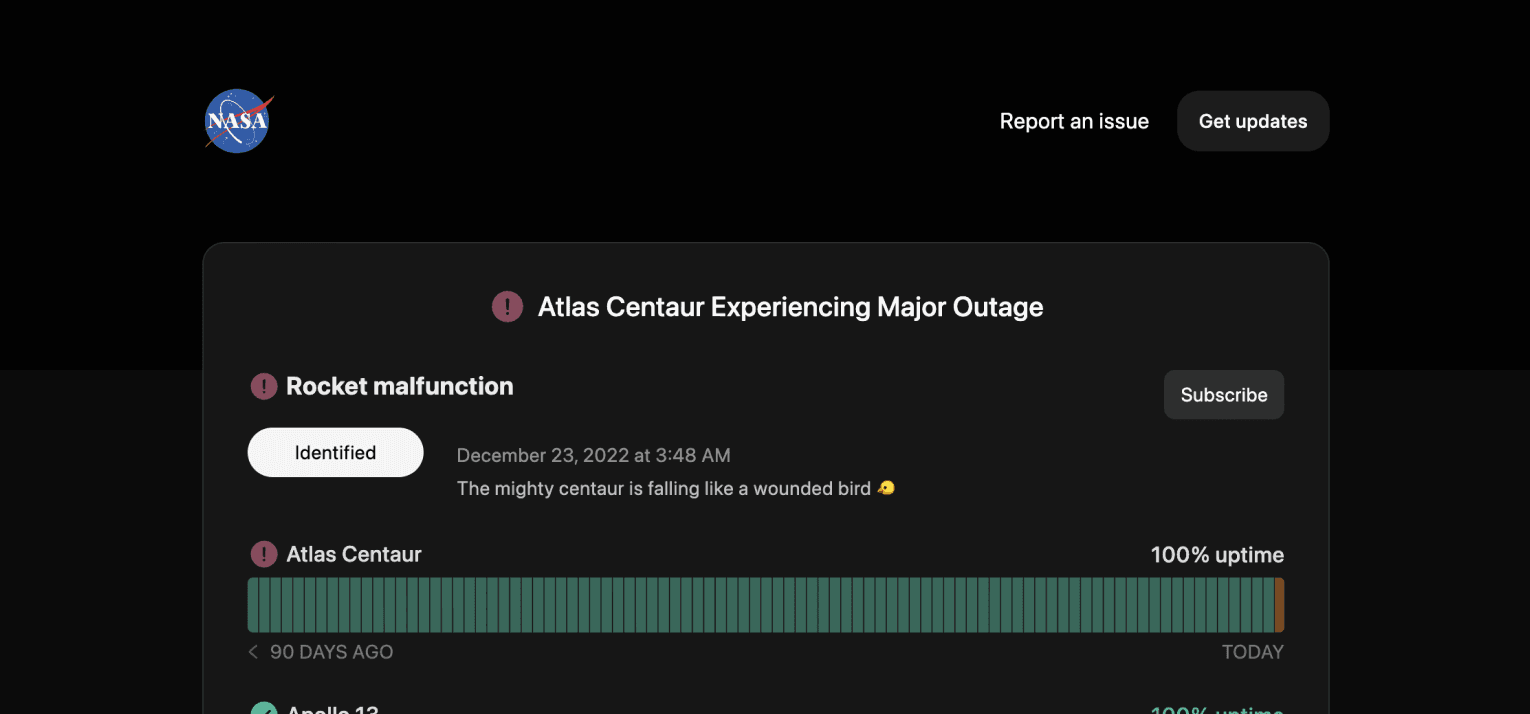
Customize updates using templates
- Create a Jira webhook in Instatus Jira Integration
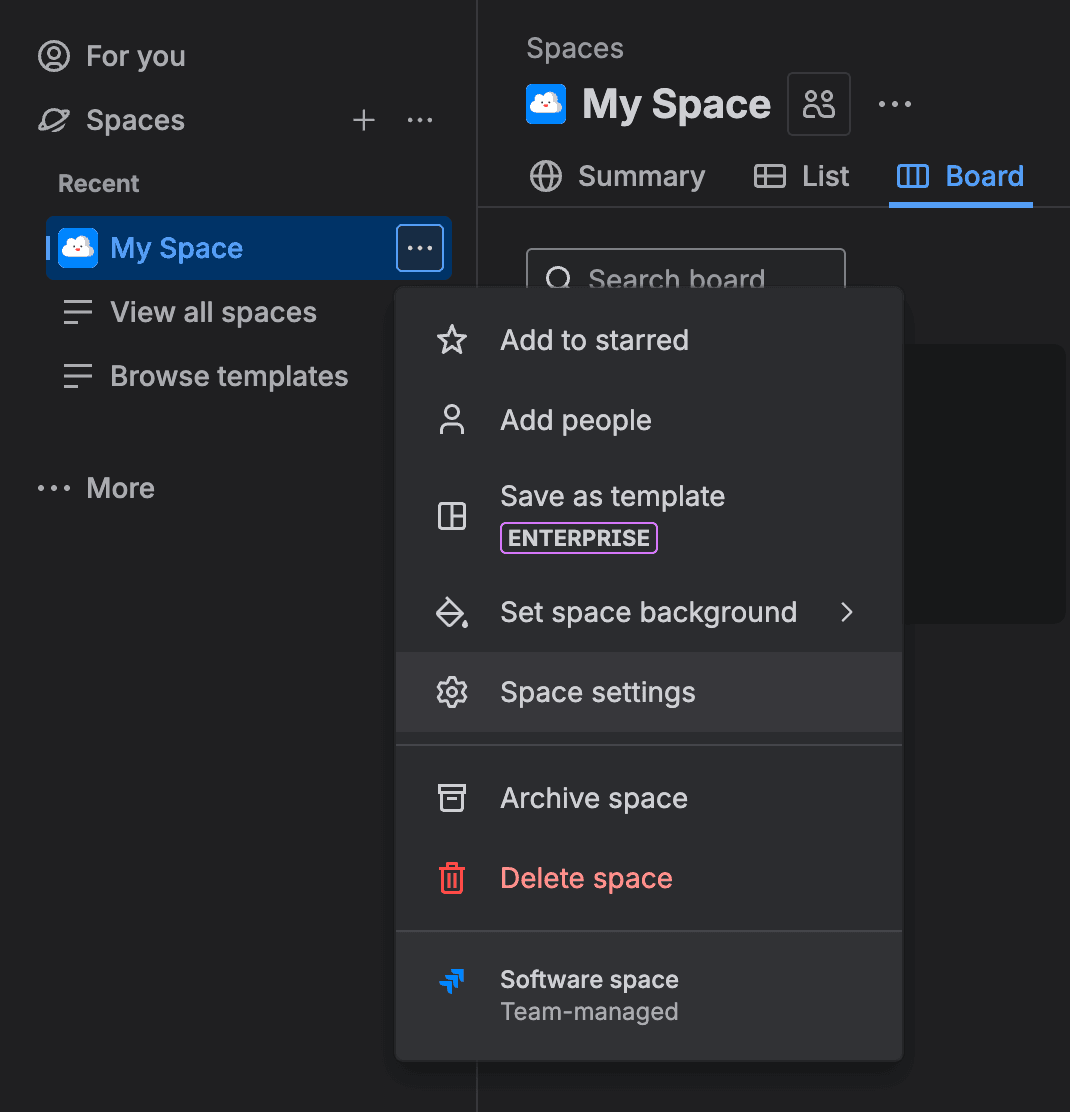
- In your Jira dashboard, go to your Space Settings → Automation → Create rule → Create from scratch
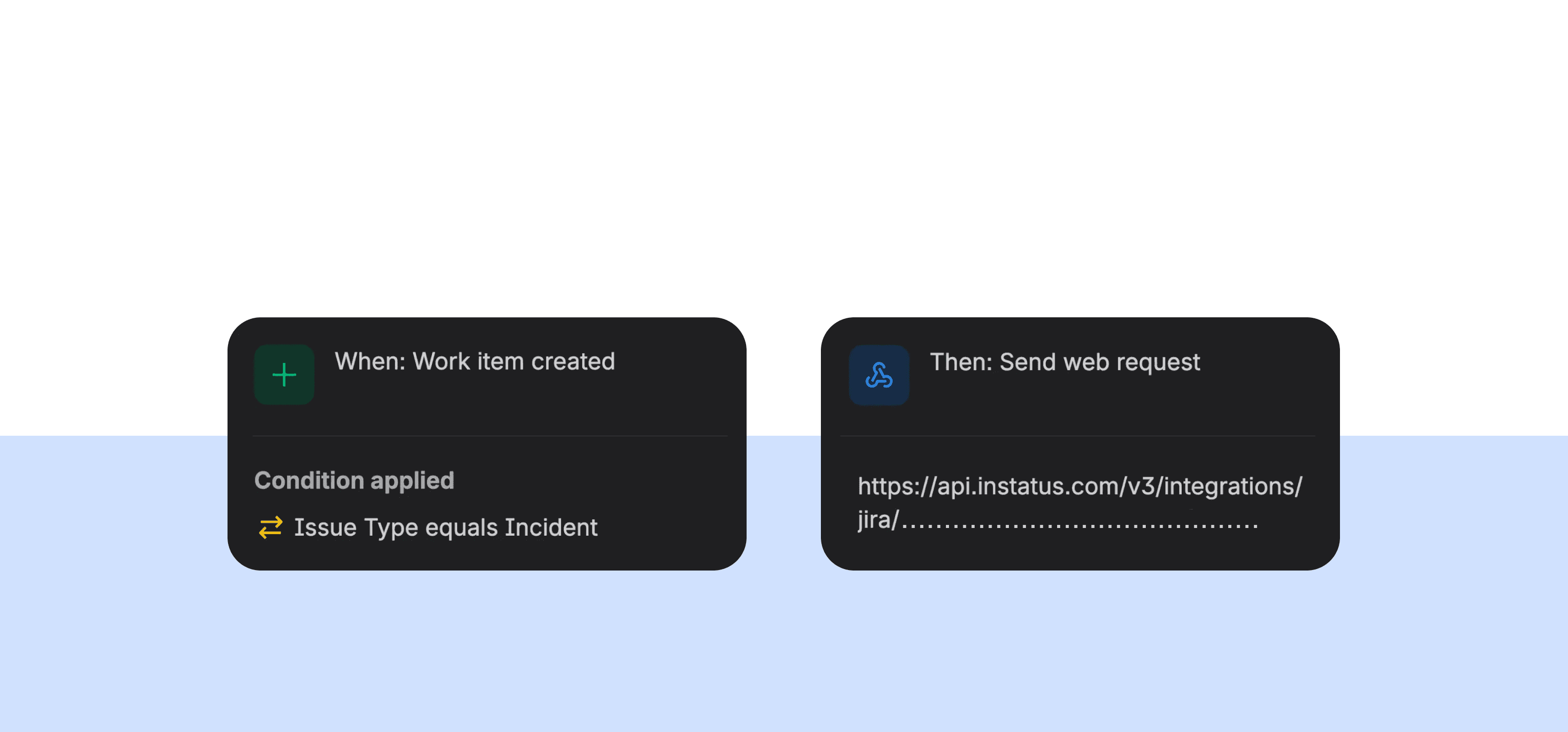
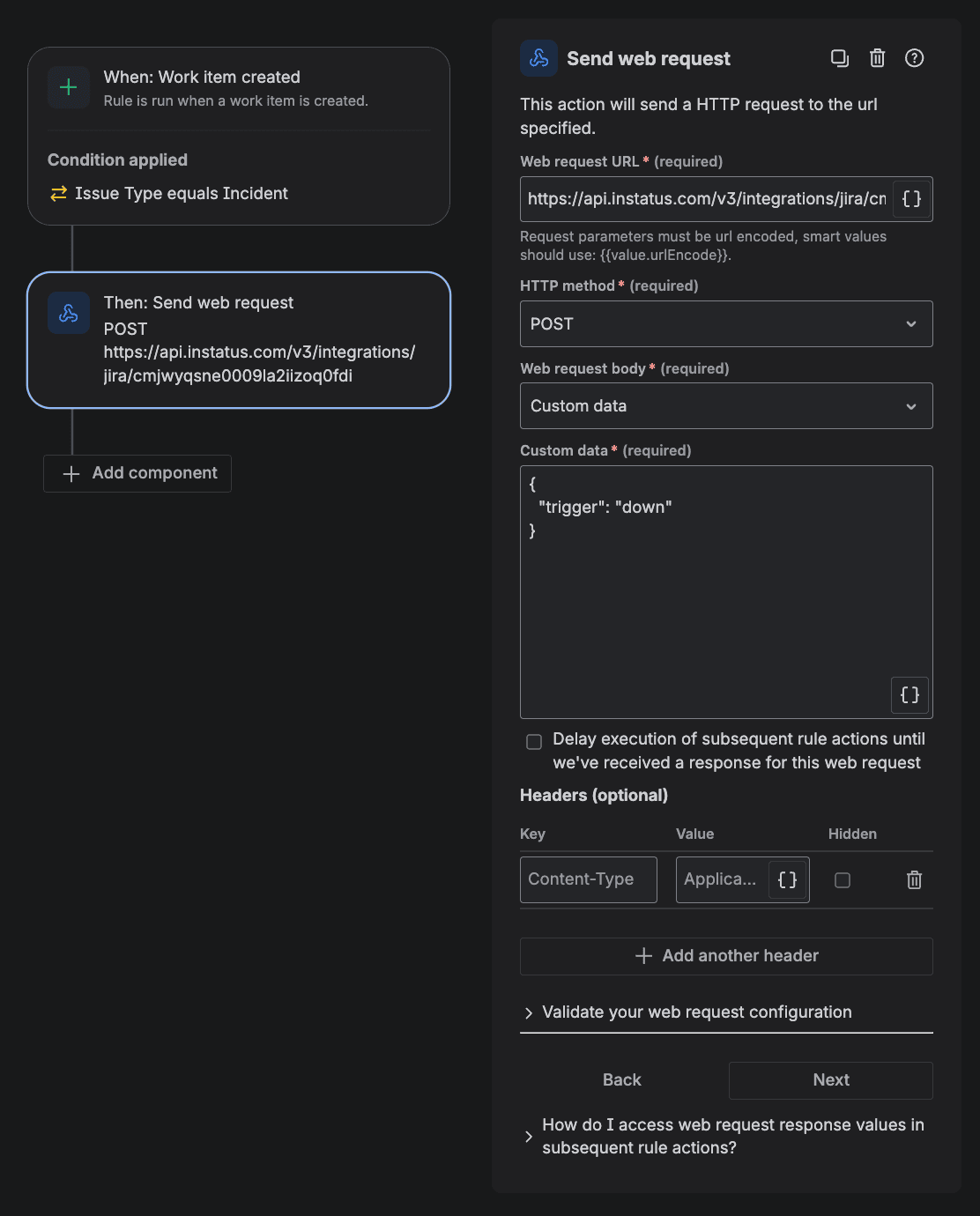
- Create a rule to create incidents when Jira issues are created
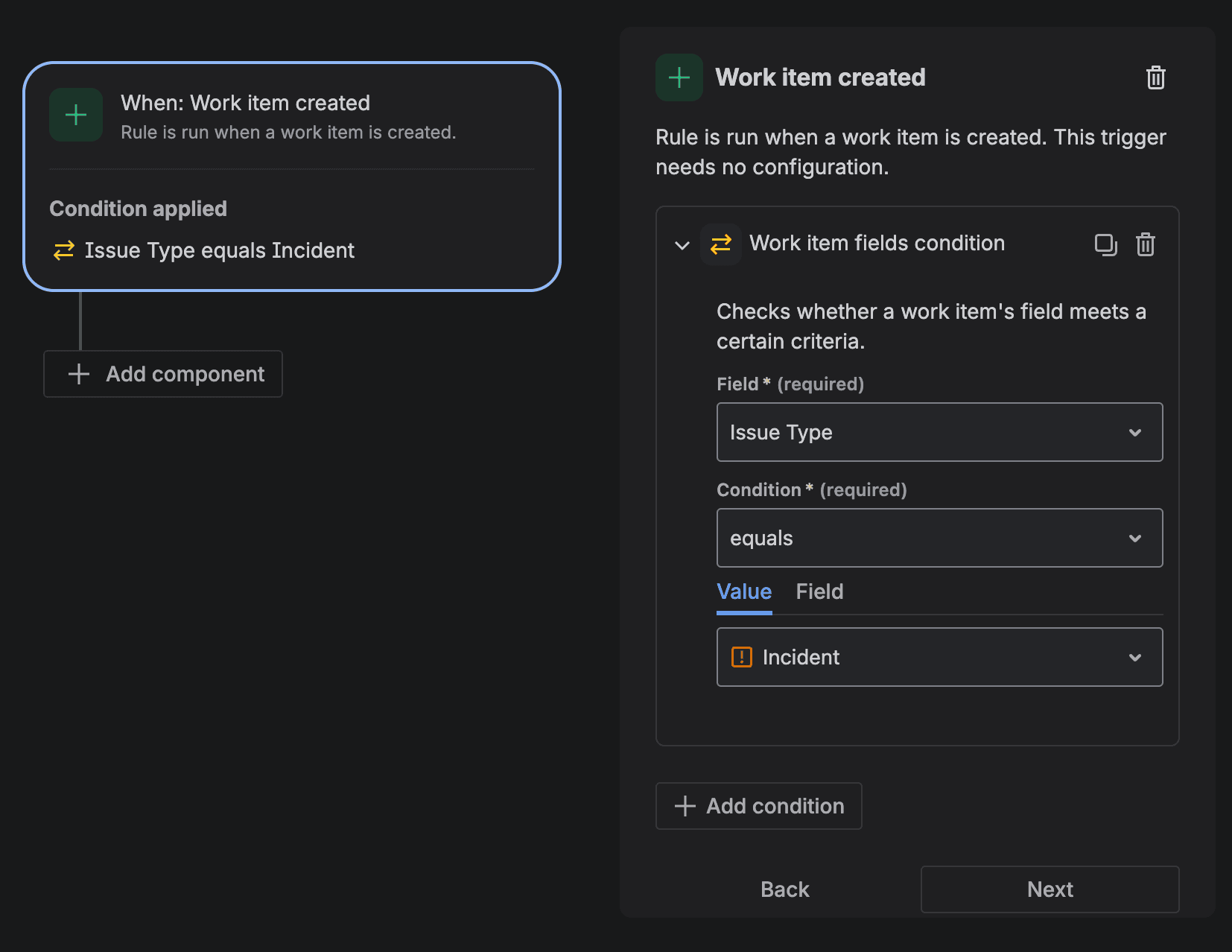
- Click Add condition then choose Work item fields condition. Select the Field to be Issue type and the value to be an issue type of your choice. You can create a new issue type for this purpose.
- Add a new action component and choose Send web request
- Paste the webhook URL from step 1 in the request URL field. Choose the
POSTHTTP method and select Custom data for the request body & paste the following: - Make sure that the Actor for this automation rule is set to Automation for Jira to avoid any permission issues. You can check this in Rule details → Actor
- Click next → Turn on rule & give it a name
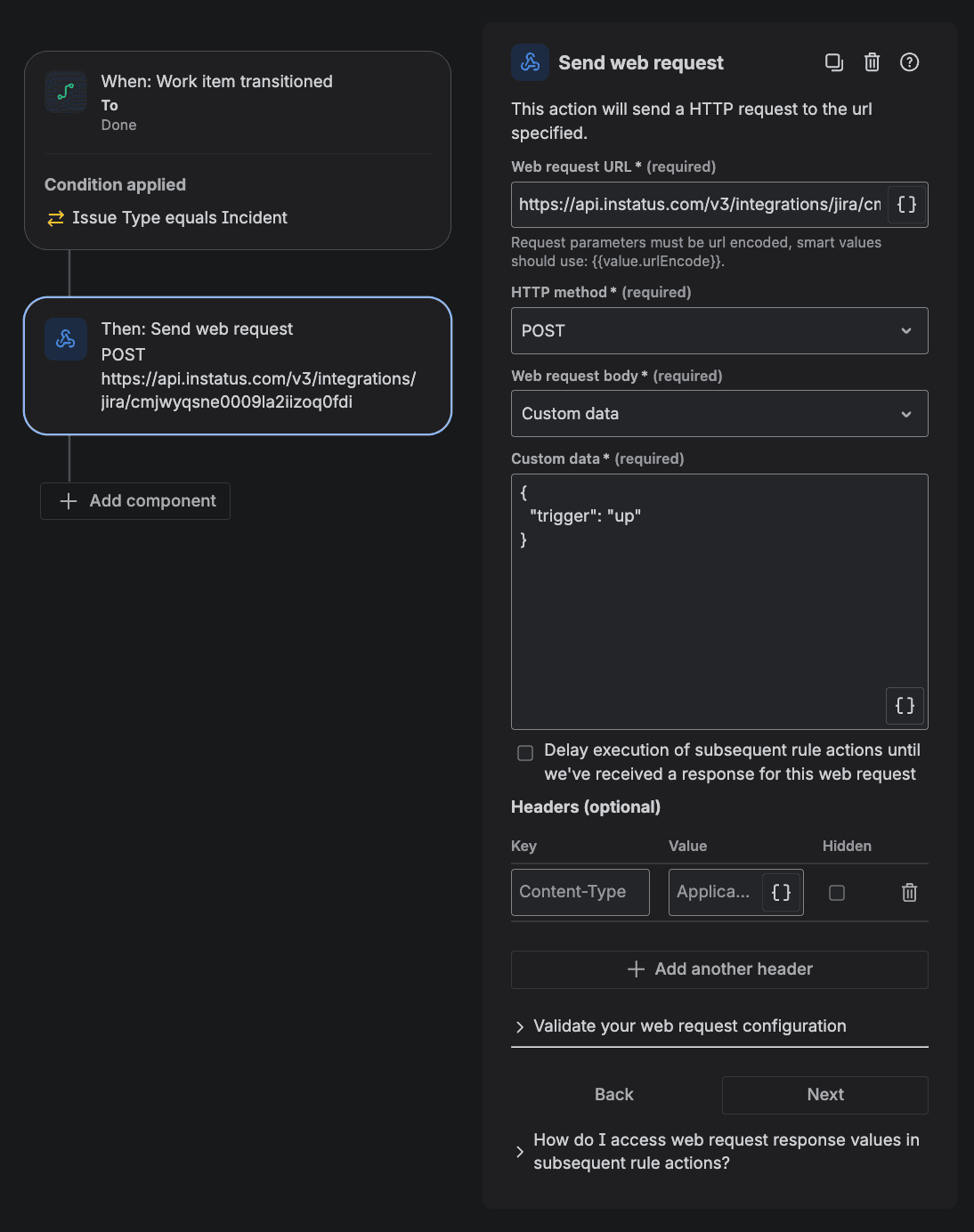
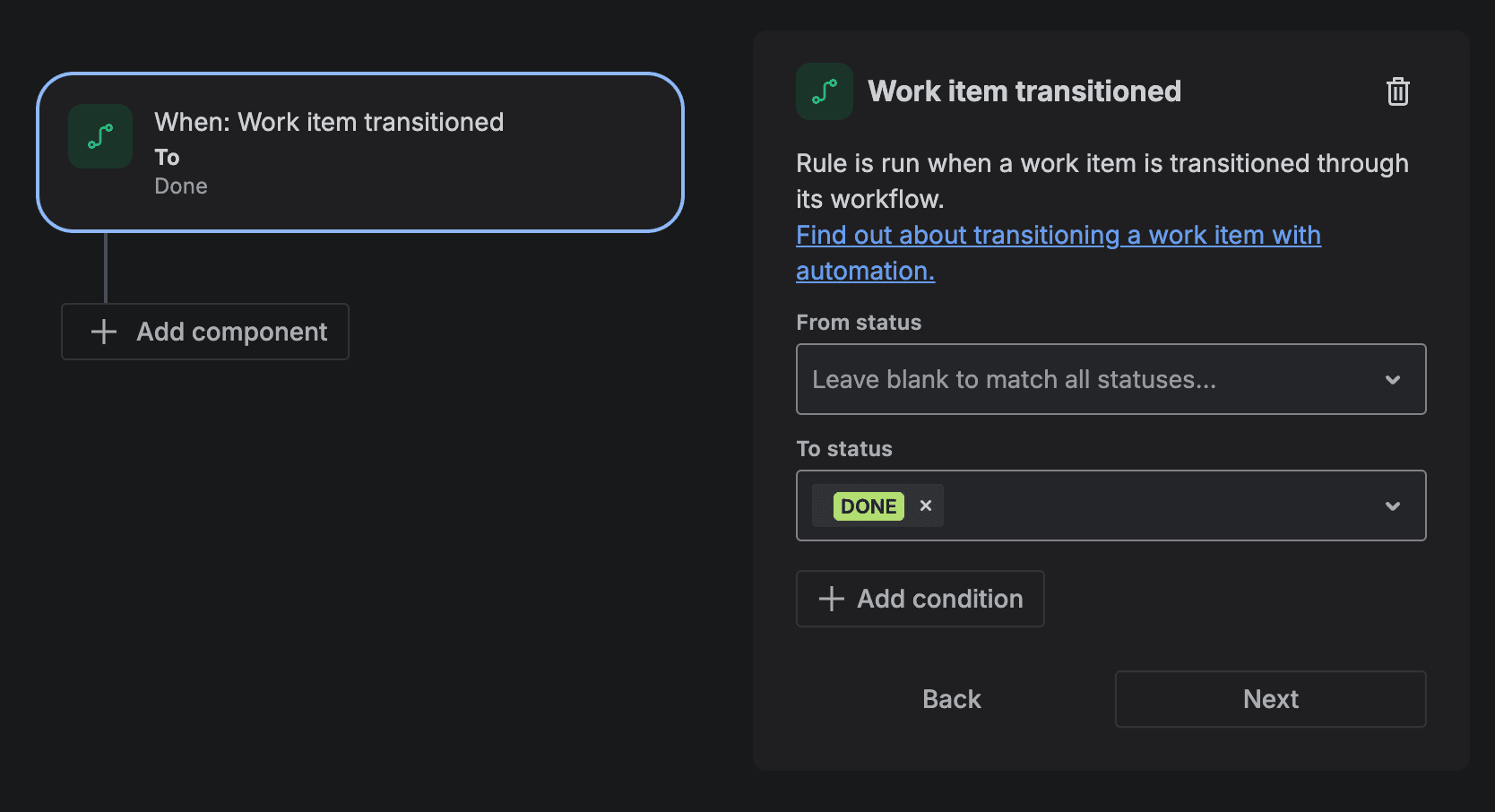
- Add a trigger → search & choose Work item transitioned → set the To status to be Done or any status that indicates resolution
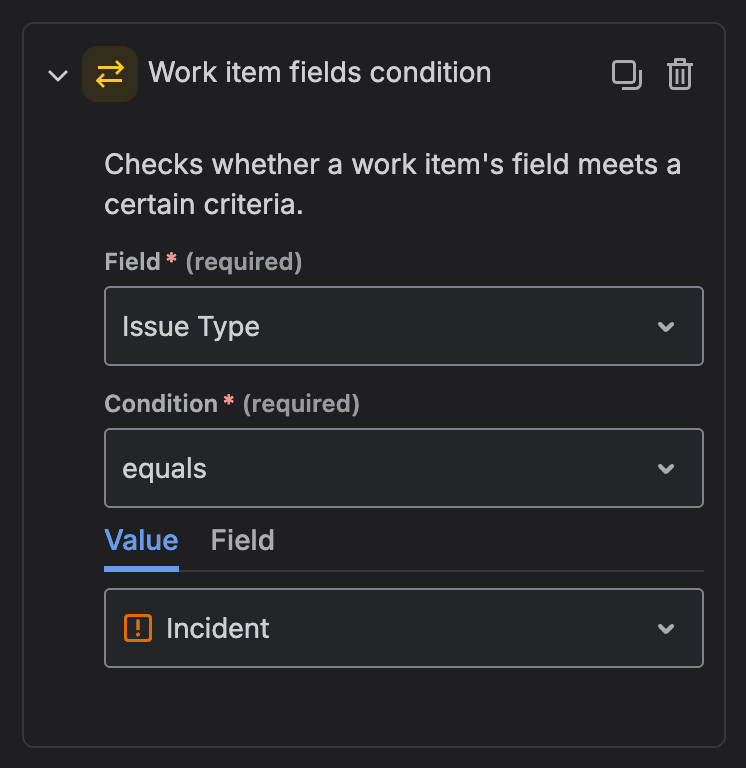
- Click add condition then choose Work item fields condition. Select the Field to be Issue type and the value to be the same as the issue type used in the create incident rule (Step 4)
- Add an action component and choose Send web request
- Paste the same webhook URL from step 1 in the request URL field. Choose the
POSTHTTP method and select Custom data for the request body & paste the following: - Make sure that the Actor for this automation rule is set to Automation for Jira to avoid any permission issues. You can check this in Rule details → Actor
- Click next → Turn on rule & give it a name. That's the resolve incident rule created.
- You're done! 🎉
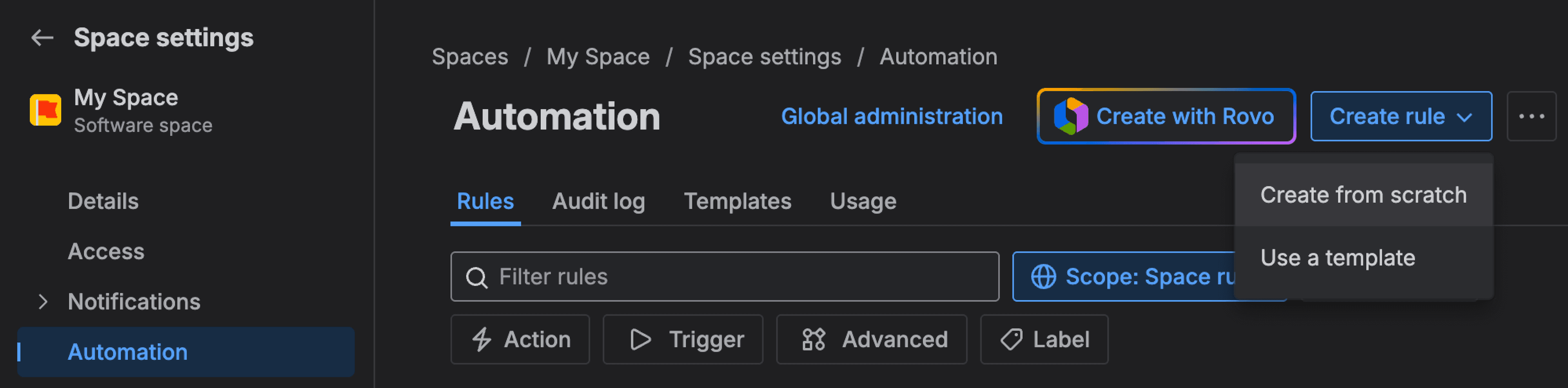
To apply automation rules to all spaces, you need to switch to Global administration and apply the same following rules:
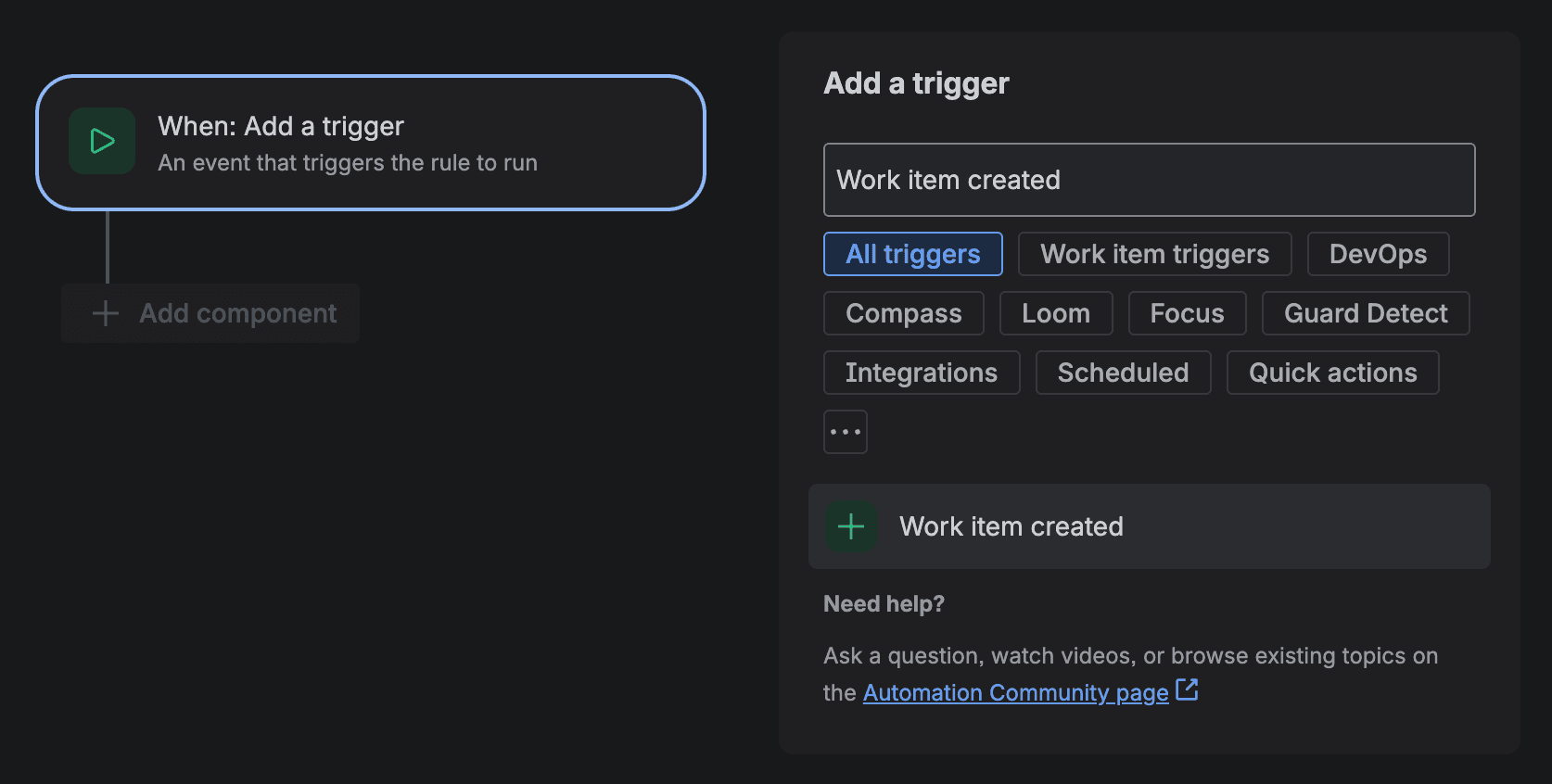
Add a trigger → search & choose Work item created
{"trigger": "down"}
We have created the create incident rule. Now, let's create the resolve incident rule:
{"trigger": "up"}